
TUTORIALS • TECHNIQUES
The Hybrid Workflow: Digitizing Watercolor for Commercial Illustration
Integrating traditional watercolor into a digital illustration workflow requires the same strategic planning as 3D animation or vector graphics. As a medium, watercolor is an incredibly sophisticated tool: it effortlessly introduces organic complexity to scientific subjects, and it brings tactile warmth and personality to hospitality and branding elements.
Today, the possibilities of the hybrid workflow have never been greater. We can paint traditionally, scan at high fidelity, and digitally recombine, enhance, and scale the artwork for commercial use.
This guide outlines my studio’s exact 5-step process for bringing traditional watercolors into the modern digital space.
(Want the quick reference version? Download my free comprehensive PDF guide below).
The Studio Toolbox
Before we begin, ensure you are prepared with:
Pre-Production: Solid reference imagery and tightly approved sketch comps.
Hardware: A high-quality flatbed scanner capable of scanning at 600 PPI.
Software: Adobe Photoshop (specifically leveraging Layer Masks, Blend Modes, and the Spot Healing Brush).
The Studio Toolbox
Before we begin, ensure you are prepared with:
Pre-Production: Solid reference imagery and tightly approved sketch comps.
Hardware: A high-quality flatbed scanner capable of scanning at 600 PPI.
Software: Adobe Photoshop (specifically leveraging Layer Masks, Blend Modes, and the Spot Healing Brush).
Step 1:
Pre-Production & Planning
In a commercial setting, watercolor requires strict pre-production. Unlike digital painting, watercolor is an unforgiving, destructive medium.
Gather Reference: Assemble your still life, photo references, or anatomical data before your brush ever touches the paper.
Lock the Drawing: Always get client approval on your preliminary sketches before you begin painting. Inform your clients that structural changes requested late in the painting process will incur additional charges—much like late-stage changes in a 3D render.
Value Your Medium: Watercolor is often considered one of the most difficult traditional mediums to master. Ensure you are pricing this unique, hand-crafted skillset appropriately.
Step 1:
Pre-Production & Planning
In a commercial setting, watercolor requires strict pre-production. Unlike digital painting, watercolor is an unforgiving, destructive medium.
Gather Reference: Assemble your still life, photo references, or anatomical data before your brush ever touches the paper.
Lock the Drawing: Always get client approval on your preliminary sketches before you begin painting. Inform your clients that structural changes requested late in the painting process will incur additional charges—much like late-stage changes in a 3D render.
Value Your Medium: Watercolor is often considered one of the most difficult traditional mediums to master. Ensure you are pricing this unique, hand-crafted skillset appropriately.
Step 2:
Execution (Painting the Form)
The success of a watercolor piece relies on accurate drawing and an understanding of hydrodynamics.
Scale: Work at 1x to 1.5x of the final intended output size to preserve the integrity of the natural paper texture.
Paper Selection: Use Hot Press paper for high-detail, crisp scientific rendering, or Cold Press paper if you want to emphasize a heavy, organic texture.
The Light-to-Dark Architecture: * Establish a clear drawing that indicates specular highlights, halftone textures, core shadows, and ambient occlusion.
Paint wet-in-wet first to define the overall tonal composition.
Always work light to dark: lay in washes for the specular highlights, then mid-tones, then darks, and finally ambient occlusion, allowing the paper to dry between layers.
Use dry-brush techniques over your dried washes to add final sharp details.
Note on Masking Fluid: Use it judiciously, and only apply or remove it when the paper is completely, bone-dry.
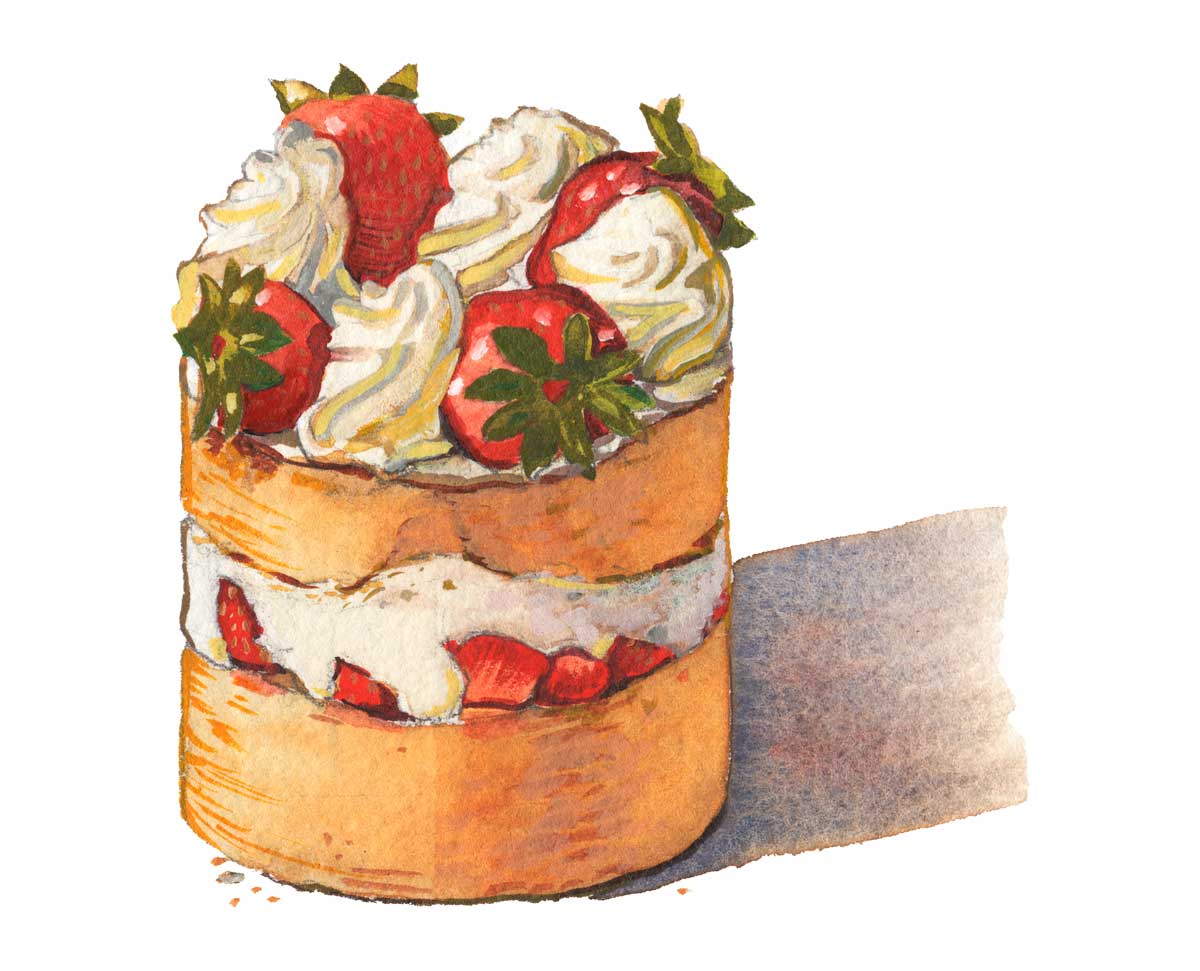
Step 2:
Execution (Painting the Form)
The success of a watercolor piece relies on accurate drawing and an understanding of hydrodynamics.
Scale: Work at 1x to 1.5x of the final intended output size to preserve the integrity of the natural paper texture.
Paper Selection: Use Hot Press paper for high-detail, crisp scientific rendering, or Cold Press paper if you want to emphasize a heavy, organic texture.
The Light-to-Dark Architecture: * Establish a clear drawing that indicates specular highlights, halftone textures, core shadows, and ambient occlusion.
Paint wet-in-wet first to define the overall tonal composition.
Always work light to dark: lay in washes for the specular highlights, then mid-tones, then darks, and finally ambient occlusion, allowing the paper to dry between layers.
Use dry-brush techniques over your dried washes to add final sharp details.
Note on Masking Fluid: Use it judiciously, and only apply or remove it when the paper is completely, bone-dry.
Step 3:
The High-Fidelity Scan & Extraction
The Scan: Ensure the paper is fully dry and perfectly flat. Scan the artwork at 600 PPI in RGB mode for maximum data and color flexibility.
The Extraction: Bring the scan into Photoshop. Modern Photoshop has incredible AI tools like the Object Selection Tool or Select Subject, which are great first steps. However, watercolor edges are notoriously soft, so here is my foolproof manual method for a perfect mask:
Create a temporary blank layer below your artwork and fill it with pure black.
Use the Magic Wand tool to select the white paper background of your scanned art.
Invert the selection (
Cmd/Ctrl + Shift + I).Apply a Layer Mask to your artwork layer. The black background will reveal any messy, semi-transparent edges you missed.
Use the Lasso tool or a soft brush directly on the Layer Mask to manually refine the edge.
Studio Pro-Tip: Watercolor naturally has a soft, bleeding edge. To replicate this digitally, apply a very slight Gaussian Blur directly to your Layer Mask (not the artwork itself) for a natural, integrated transition into the background.
Step 3:
The High-Fidelity Scan & Extraction
The Scan: Ensure the paper is fully dry and perfectly flat. Scan the artwork at 600 PPI in RGB mode for maximum data and color flexibility.
The Extraction: Bring the scan into Photoshop. Modern Photoshop has incredible AI tools like the Object Selection Tool or Select Subject, which are great first steps. However, watercolor edges are notoriously soft, so here is my foolproof manual method for a perfect mask:
Create a temporary blank layer below your artwork and fill it with pure black.
Use the Magic Wand tool to select the white paper background of your scanned art.
Invert the selection (
Cmd/Ctrl + Shift + I).Apply a Layer Mask to your artwork layer. The black background will reveal any messy, semi-transparent edges you missed.
Use the Lasso tool or a soft brush directly on the Layer Mask to manually refine the edge.
Studio Pro-Tip: Watercolor naturally has a soft, bleeding edge. To replicate this digitally, apply a very slight Gaussian Blur directly to your Layer Mask (not the artwork itself) for a natural, integrated transition into the background.
Step 4:
Digital Refinement
Post-processing should enhance the traditional medium, not overwrite it.
Clean Up: Use the Spot Healing Brush Tool (
J) to seamlessly remove minor blemishes like stray pencil lines, dust, or scanner lint.Preserve the Medium: Avoid opaque digital overpainting. Heavy digital brushstrokes will instantly kill the charm and transparency of the watercolor effect.
Transparent Touch-Ups: If you must adjust colors or fix edges, create a new layer, set the Blend Mode to Color or Multiply, and paint transparently. This preserves the beautiful, hand-painted luminosity underneath.
Step 4:
Digital Refinement
Post-processing should enhance the traditional medium, not overwrite it.
Clean Up: Use the Spot Healing Brush Tool (
J) to seamlessly remove minor blemishes like stray pencil lines, dust, or scanner lint.Preserve the Medium: Avoid opaque digital overpainting. Heavy digital brushstrokes will instantly kill the charm and transparency of the watercolor effect.
Transparent Touch-Ups: If you must adjust colors or fix edges, create a new layer, set the Blend Mode to Color or Multiply, and paint transparently. This preserves the beautiful, hand-painted luminosity underneath.
Step 5:
Integration & Backpainting
When integrating your isolated watercolor asset into a larger digital composition or a colored background, the Multiplyblend mode is your best friend. However, Multiply can sometimes make the watercolor look muddy or too dark.
The Backpainting Solution:
Set your watercolor artwork layer to Multiply.
Create a new, blank layer directly underneath your artwork.
Select a hard digital brush, choose pure white, and manually paint a solid silhouette behind the specific areas of your watercolor that need to remain luminous and opaque. This creates a perfect hybrid: interacting with the background where you want it to, while popping off the canvas where it needs to.
Step 5:
Integration & Backpainting
When integrating your isolated watercolor asset into a larger digital composition or a colored background, the Multiplyblend mode is your best friend. However, Multiply can sometimes make the watercolor look muddy or too dark.
The Backpainting Solution:
Set your watercolor artwork layer to Multiply.
Create a new, blank layer directly underneath your artwork.
Select a hard digital brush, choose pure white, and manually paint a solid silhouette behind the specific areas of your watercolor that need to remain luminous and opaque. This creates a perfect hybrid: interacting with the background where you want it to, while popping off the canvas where it needs to.
Key Takeaways
Watercolor Offers a Fresh Experience
Watercolor is a brilliant commercial tool when executed with strategic pre-production, high-fidelity scanning, and non-destructive digital extraction. Let the medium do what it does best on paper, and use Photoshop strictly as a darkroom for refinement and integration.
Don't forget to download the comprehensive PDF guide to keep these steps handy in your studio!
Key Takeaways
Watercolor Offers a Fresh Experience
Watercolor is a brilliant commercial tool when executed with strategic pre-production, high-fidelity scanning, and non-destructive digital extraction. Let the medium do what it does best on paper, and use Photoshop strictly as a darkroom for refinement and integration.
Don't forget to download the comprehensive PDF guide to keep these steps handy in your studio!
Did you find this helpful? Do you have any of your own tips you'd like to share? I'd love to hear about it if you decide to try something new. If you use it differently, I'd love to hear that, too!

-Laura
Did you find this helpful? Do you have any of your own tips you'd like to share? I'd love to hear about it if you decide to try something new. If you use it differently, I'd love to hear that, too!