
TUTORIALS • FOUNDATIONS
Rendering a Matte Cube in Photoshop
Why master a basic cube in Adobe Photoshop? Because the logic used to build this primitive shape is the exact same planar analysis used to render anything more complex. Whether you are painting a block of cortical bone, an architectural cross-section, or a piece of packaging, mastering these fundamental concepts is your first step to rendering dimensional volume in Photoshop.
The result of this tutorial is a matte (non-reflective) cube. The only difference between this basic object and a highly detailed technical illustration is the time spent refining textures, adding reflected ambient light, and dropping cast shadows. But first, we must establish accurate drawing and value relationships.
The Studio Toolbox
Photoshop Tools
Before we begin, ensure you are familiar with these core tools:
Pen Tool (
P): Used to click and plot the corner anchor points of your cube.Selection Tools (
AorShift + A): The Black Arrow selects whole paths; the White Arrow (Direct Selection) selects individual anchor points to correct your drawing.Clipping Masks: The Photoshop equivalent of "drawing inside the lines." It restricts the visibility of a layer to the exact pixel boundaries of the layer beneath it.
Levels (
Cmd/Ctrl + L): Used to rapidly adjust the brightness and contrast of a painted shape.
The Studio Toolbox
Photoshop Tools
Before we begin, ensure you are familiar with these core tools:
Pen Tool (
P): Used to click and plot the corner anchor points of your cube.Selection Tools (
AorShift + A): The Black Arrow selects whole paths; the White Arrow (Direct Selection) selects individual anchor points to correct your drawing.Clipping Masks: The Photoshop equivalent of "drawing inside the lines." It restricts the visibility of a layer to the exact pixel boundaries of the layer beneath it.
Levels (
Cmd/Ctrl + L): Used to rapidly adjust the brightness and contrast of a painted shape.
Step 1:
The Blueprint
Sketch a cube in perspective, following the rules of 1, 2, or 3-point perspective.
Place your sketch into your Photoshop document as the top layer.
Set the sketch layer's Blend Mode to Multiply. This allows you to see your underlying linework while you lay down digital paint. Lock the layer.
Step 1:
The Blueprint
Sketch a cube in perspective, following the rules of 1, 2, or 3-point perspective.
Place your sketch into your Photoshop document as the top layer.
Set the sketch layer's Blend Mode to Multiply. This allows you to see your underlying linework while you lay down digital paint. Lock the layer.
Step 2:
Vector Architecture (The Overlap Logic)
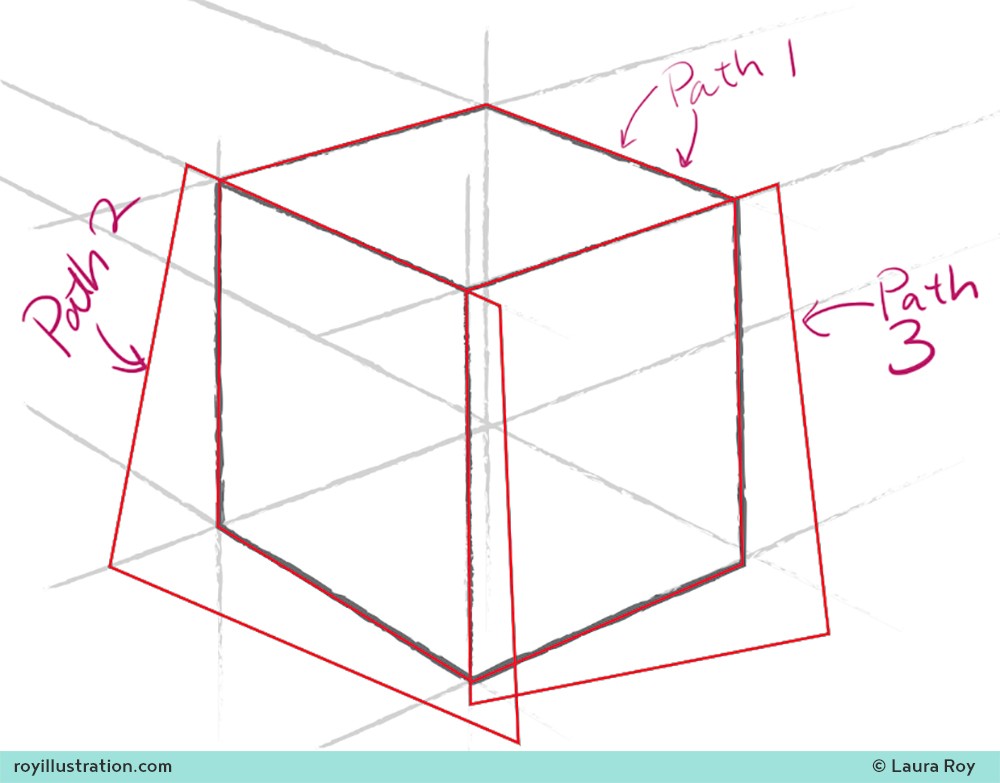
We will use overlapping paths to create razor-sharp interior edges. Tracing the exact same interior line twice often results in ugly, pixel-thin gaps. By overlapping our shapes, we eliminate that risk entirely.
Use the Pen Tool (P) to create three distinct paths. (Keep them all in the same Work Path layer in your Paths panel).
Path 1 (The Master Silhouette): Trace the entire outer boundary of the cube. Ignore the internal lines.
Path 2 (The Mid-tone Plane): Trace one of the visible side faces. Keep the shared top edge "clean" and accurate, but let the bottom and side points bleed way outside the master cube boundary.
Path 3 (The Shadow Plane): Trace the final side face. Keep its two internal edges clean and accurate, but let the remaining points overlap deep into the background.
Step 2:
Vector Architecture (The Overlap Logic)
We will use overlapping paths to create razor-sharp interior edges. Tracing the exact same interior line twice often results in ugly, pixel-thin gaps. By overlapping our shapes, we eliminate that risk entirely.
Use the Pen Tool (P) to create three distinct paths. (Keep them all in the same Work Path layer in your Paths panel).
Path 1 (The Master Silhouette): Trace the entire outer boundary of the cube. Ignore the internal lines.
Path 2 (The Mid-tone Plane): Trace one of the visible side faces. Keep the shared top edge "clean" and accurate, but let the bottom and side points bleed way outside the master cube boundary.
Path 3 (The Shadow Plane): Trace the final side face. Keep its two internal edges clean and accurate, but let the remaining points overlap deep into the background.
Step 3:
Establishing the Master Base
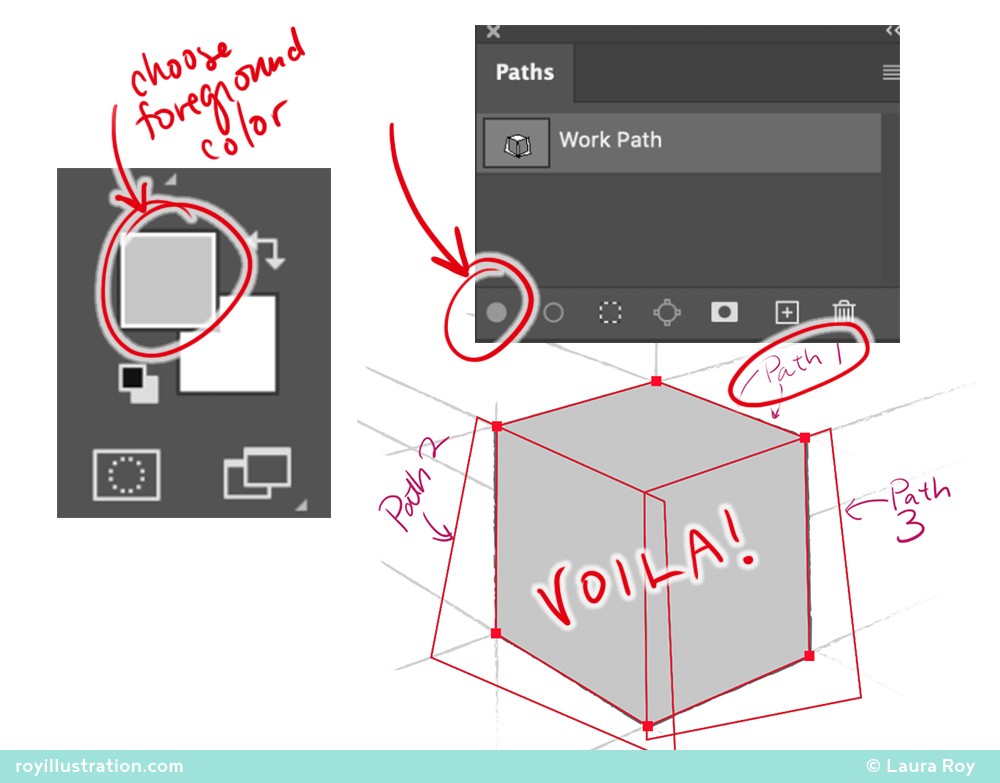
Create a New Layer and name it "Base Light."
Double-click your Foreground Color and choose a light grey.
In your Paths panel, select Path 1 (the Master Silhouette) using the Black Arrow.
Click the solid circle at the bottom of the Paths panel ("Fill path with foreground color").
Step 3:
Establishing the Master Base
Create a New Layer and name it "Base Light."
Double-click your Foreground Color and choose a light grey.
In your Paths panel, select Path 1 (the Master Silhouette) using the Black Arrow.
Click the solid circle at the bottom of the Paths panel ("Fill path with foreground color").
Step 4:
Clipping Masks & Planar Values
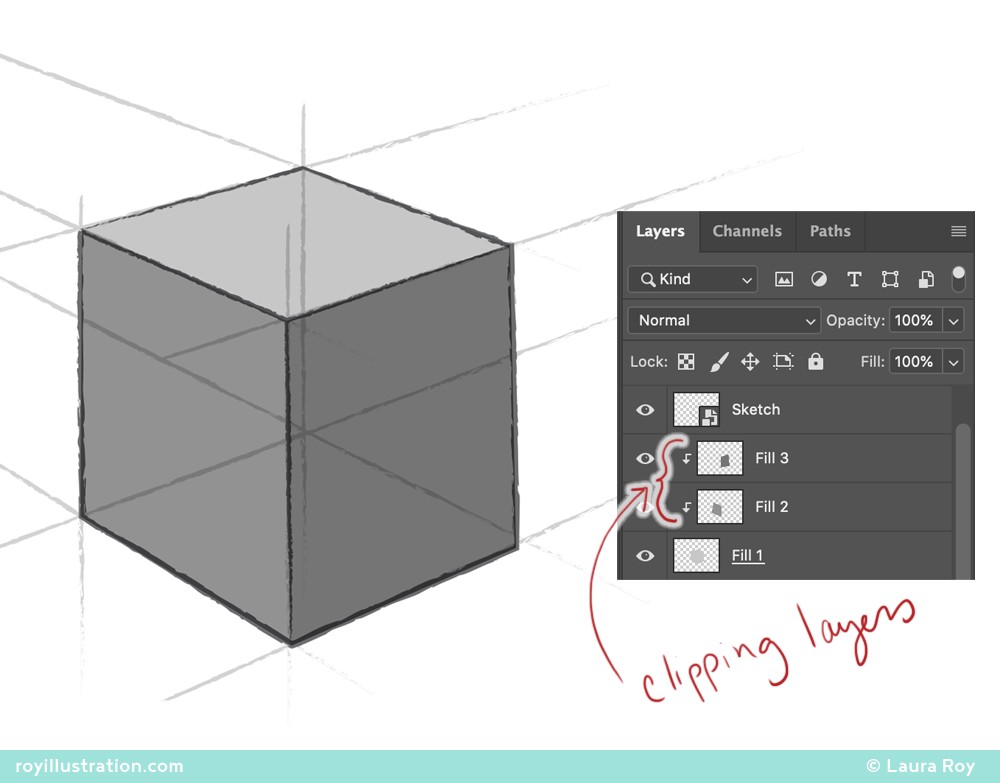
Now we will use Clipping Masks to contain our messy overlapping paths inside that perfect master base.
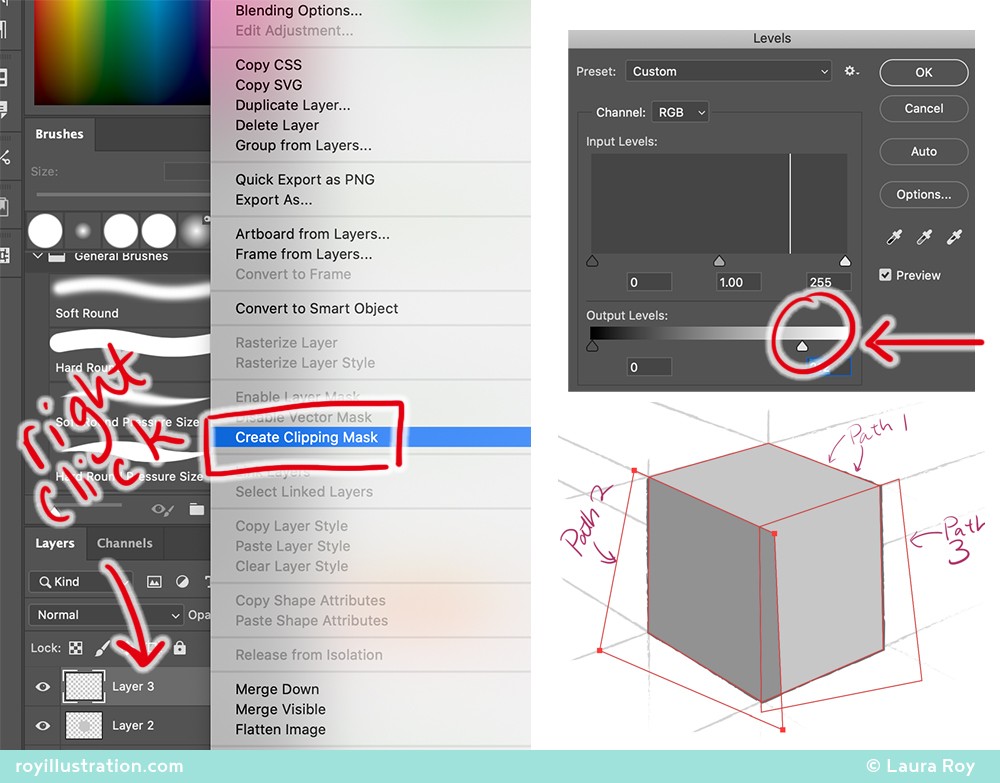
Fill the Mid-tone:
Create a New Layer above your Base layer.
Right-click the new layer's name and select Create Clipping Mask (or hold
Opt/Altand click the line between the two layers). A small down-arrow will appear, indicating it is clipped to the base.Select Path 2 with the Black Arrow and click "Fill path."
Note: Because it is the same light grey, it will look like nothing happened. Press
Cmd/Ctrl + Lto open Levels, and drag the Output Levels slider to darken this plane into a clear mid-tone.
Fill the Core Shadow:
Create a New Layer above the mid-tone layer.
Right-click and Create Clipping Mask (clipping it down to the same base stack).
Select Path 3 with the Black Arrow and click "Fill path."
Open Levels (
Cmd/Ctrl + L) and darken this plane into your core shadow value.
Step 4:
Clipping Masks & Planar Values
Now we will use Clipping Masks to contain our messy overlapping paths inside that perfect master base.
Fill the Mid-tone:
Create a New Layer above your Base layer.
Right-click the new layer's name and select Create Clipping Mask (or hold
Opt/Altand click the line between the two layers). A small down-arrow will appear, indicating it is clipped to the base.Select Path 2 with the Black Arrow and click "Fill path."
Note: Because it is the same light grey, it will look like nothing happened. Press
Cmd/Ctrl + Lto open Levels, and drag the Output Levels slider to darken this plane into a clear mid-tone.
Fill the Core Shadow:
Create a New Layer above the mid-tone layer.
Right-click and Create Clipping Mask (clipping it down to the same base stack).
Select Path 3 with the Black Arrow and click "Fill path."
Open Levels (
Cmd/Ctrl + L) and darken this plane into your core shadow value.
Step 5:
Refinement & Cleanup
Evaluate & Adjust: In your Paths panel, click the empty gray space to deselect your active paths, then hide your sketch layer to view your uninterrupted render. If your lighting feels flat, use Levels (
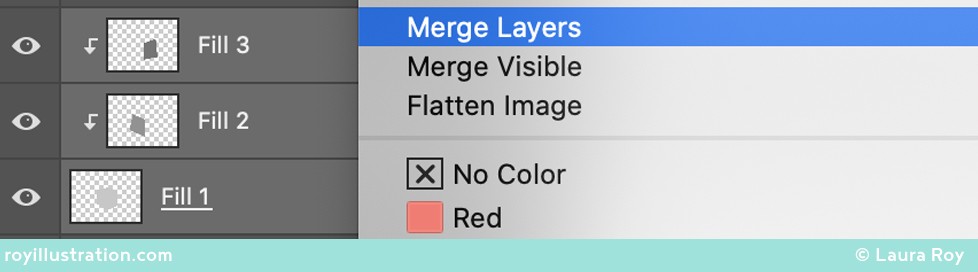
Cmd/Ctrl + L) to push the contrast and ensure your values are bold and readable.Consolidate: Once you are satisfied with the form, select all of your painted shape layers (excluding the sketch), right-click, and choose Merge Layers. Lock this newly merged layer to protect your final rendering.
Archive Your Architecture (Studio Best Practice): For a simple exercise, you can delete your "Work Path" by dragging it to the trash icon. However, for complex scientific illustrations, never delete your paths. Instead, double-click the Work Path and rename it (e.g., "Base Architecture"). This saves your vector blueprint permanently within the document, allowing you to instantly generate perfect masks or make precise edits in the future.
Step 5:
Refinement & Cleanup
Evaluate & Adjust: In your Paths panel, click the empty gray space to deselect your active paths, then hide your sketch layer to view your uninterrupted render. If your lighting feels flat, use Levels (
Cmd/Ctrl + L) to push the contrast and ensure your values are bold and readable.Consolidate: Once you are satisfied with the form, select all of your painted shape layers (excluding the sketch), right-click, and choose Merge Layers. Lock this newly merged layer to protect your final rendering.
Archive Your Architecture (Studio Best Practice): For a simple exercise, you can delete your "Work Path" by dragging it to the trash icon. However, for complex scientific illustrations, never delete your paths. Instead, double-click the Work Path and rename it (e.g., "Base Architecture"). This saves your vector blueprint permanently within the document, allowing you to instantly generate perfect masks or make precise edits in the future.
Key Takeaways
Overlapping Paths to Define Internal Edges
Use overlapping paths to define interior edges without creating transparent gaps. By leveraging a single clean base layer and stacking Clipping Masks on top of it, you can rapidly establish flawless geometric volumes.
Key Takeaways
Overlapping Paths to Define Internal Edges
Use overlapping paths to define interior edges without creating transparent gaps. By leveraging a single clean base layer and stacking Clipping Masks on top of it, you can rapidly establish flawless geometric volumes.
Did you find this helpful? Do you have any of your own tips you'd like to share? I'd love to hear about it if you decide to try something new. If you use it differently, I'd love to hear that, too!

-Laura
Did you find this helpful? Do you have any of your own tips you'd like to share? I'd love to hear about it if you decide to try something new. If you use it differently, I'd love to hear that, too!